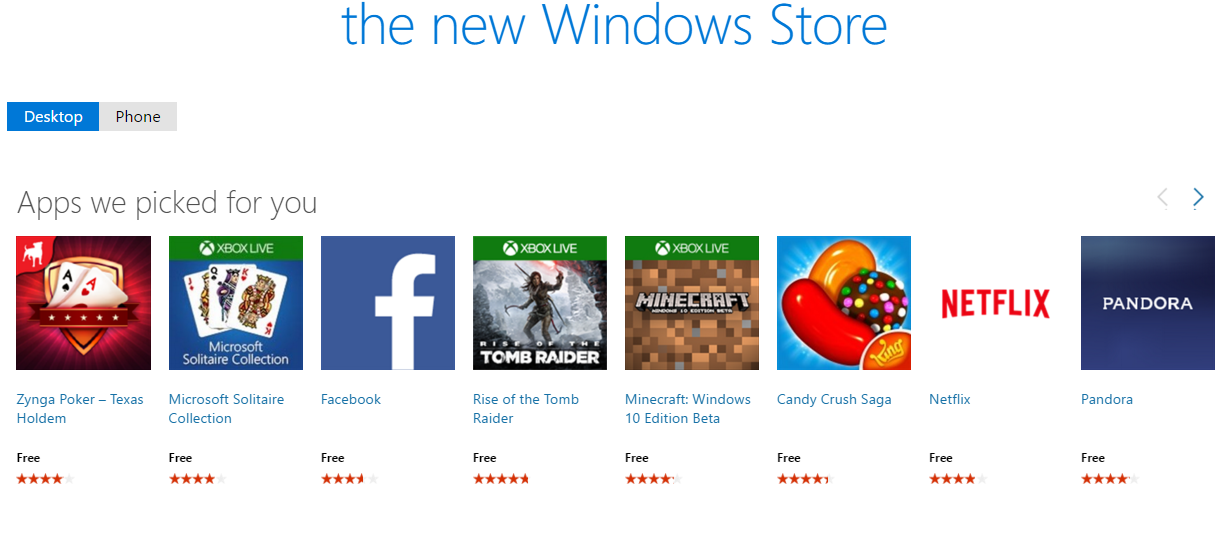










Buying and downloading Windows 10 apps and games is simple, and you can install any app or game on up to 10 devices. If, however, you have a shared family PC, tablet or smartphone linked to your Microsoft account, you may want to prevent your kids from running up astronomical charges on your account.
We have a few Windows Store tips to help you protect your account, keep an eye on what’s being downloaded, revoke access for specific devices and more.
By default, the Windows Store will require you to enter your Microsoft account password every time you buy an app or game.
Note: Free apps or apps with a free trial do not require a password to download.
To check that this feature is enabled – or to turn it off – open the Windows Store > go to your account (the round icon with your account profile picture next to the search bar) > click on Settings > scroll down to Purchase sign-in > toggle Streamline my purchase experience On or Off. With the option toggled Off, you’ll be prompted to enter your Windows password for every purchase. If you toggle the option On, you’ll have to enter your Windows password to confirm that your purchases are no longer password protected.
Microsoft keeps track of all your app and game purchases (even free downloads), and you can access your purchase history for the Windows Store, Microsoft Store and Xbox Store in one convenient place.
To view your purchase history open the Windows Store > go to your account > click on Purchased > log into your Microsoft account when the Microsoft Web portal launches.
All past purchases associated with your Microsoft account will be displayed, organized by year.
As mentioned, you can install apps and games from the Windows Store on up to 10 devices. It is easy to lose track of the many devices connected to your account, and you may want to remove an old device to allow you to add a new one to your account.
To see the devices connected to your Microsoft account – or to remove a device – go to the Windows Store > go to your account > click on Settings > scroll down to Account > click on Manage Your devices > log into your Microsoft account when the Microsoft Web portal launches. Now you’ll see a list of devices authorized to use your Microsoft account.
To remove one of the authorized devices, find the device in the list > click Remove > on the next screen, check the box to verify that you want to remove the device from your Microsoft account.
To add a device to your Microsoft account, simply sign into the Windows Store on the device using your Microsoft account details.
To prevent excessive data charges on your Windows 10 mobile device, you may want to prevent Windows 10 apps and games from updating automatically.
While automatic app updates should be turned Off by default in the Windows Store, you may want to double check that this is, in fact, the case.
To turn off automatic app updates for Windows 10, open the Windows Store > go to your account > click Settings > under App updates, toggle Update apps automatically to the Off position.
Support our mission to keep content open and free by engaging with theCUBE community. Join theCUBE’s Alumni Trust Network, where technology leaders connect, share intelligence and create opportunities.
Founded by tech visionaries John Furrier and Dave Vellante, SiliconANGLE Media has built a dynamic ecosystem of industry-leading digital media brands that reach 15+ million elite tech professionals. Our new proprietary theCUBE AI Video Cloud is breaking ground in audience interaction, leveraging theCUBEai.com neural network to help technology companies make data-driven decisions and stay at the forefront of industry conversations.