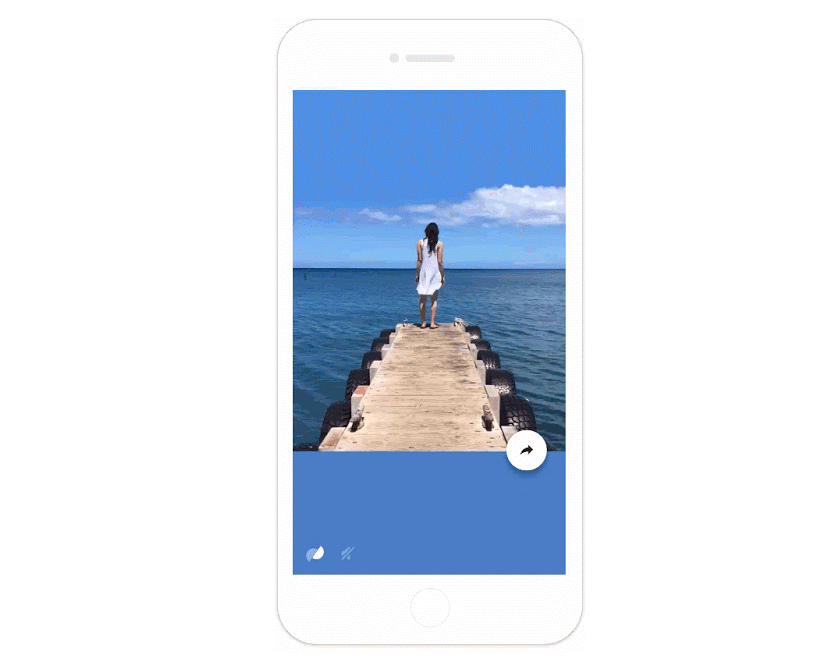


Google has launched a new app for iOS users called Motion Stills that provides video stabilization for Apple’s Live Photos and also includes the ability to easily share your finished product via messaging or on social media.
Apple introduced Live Photos, a feature that allows you to create animated photos when it launched its iPhone 6s and 6s Plus in September. While it is a cool feature, some frustrations facing users is the difficulty faced in sharing their Live Photos outside of the Apple ecosystem, users have to opt for a third-party app. As well as the likelihood that their finished Live Photo is filled with plenty of movement and shaking.
The Motion Stills app looks to alleviate these issues by stabilizing the background of your photos and make it easier to share the finished product.
Download the Motion Stills iOS app from the App Store. Once it is installed, open the app and tap a Live Photo from the vertical filmstrip that loads automatically. A split semi-circle icon (same as the app’s logo) will display in the bottom left corner of the selected photo. Tap the icon to see the GIF without Google’s video stabilization technology and notice the difference.
Tip: If you don’t want the audio in your Live Photo simply adjust it with the volume icon.
Below are two examples of Live Photos pre and post stabilization with Motion Stills.

The finished product is a more stable, looping GIF that you can easily share with your friends and family.

To share your Live Photo with better stabilization, simply tap the share icon. You can share the image as a GIF or MOV video clip. You can then select to send it via AirDrop to nearby Apple users, or you can share it directly to Facebook, iMessage, iCloud Photo Sharing, etc.
The iOS Motion Stills app also allows you to create a short movie using the Live Photos in your gallery. Simply swipe right on the image you want and it will be added to the film strip shown at the bottom of your screen. Once you have added all the Live Photos that you want to include, tap the Play button to watch your movie.
You can follow the same steps to share your movie on messaging or social media and if it is really good you can even easily upload it to YouTube.
Support our mission to keep content open and free by engaging with theCUBE community. Join theCUBE’s Alumni Trust Network, where technology leaders connect, share intelligence and create opportunities.
Founded by tech visionaries John Furrier and Dave Vellante, SiliconANGLE Media has built a dynamic ecosystem of industry-leading digital media brands that reach 15+ million elite tech professionals. Our new proprietary theCUBE AI Video Cloud is breaking ground in audience interaction, leveraging theCUBEai.com neural network to help technology companies make data-driven decisions and stay at the forefront of industry conversations.